
The interface
Four regions and a canvas. On a phone the whole thing collapses to a canvas, a style wheel and a bottom bar.
Top bar
Left is the logo and a Studio / Flow workspace switcher. Centre is the canvas tool cluster: zoom out, a percentage readout that resets zoom on click, zoom in, then crop, compare, the on-image guides toggle, add text, undo, redo and recipes. Right is the credits chip, the Pro button, and your account or a sign-in button.
Zoom is view only, from 0.25x to 4x in 0.25 steps. It CSS-scales the canvas and does not change what you export. Loading a new source resets it to 1.
Left rail: styles
Drag-resizable from its right edge, between 240px and 720px, snapping to a 72px mini-rail below 200px. Double-click the handle to collapse. Collapsed is not dismissed: the mini-rail still shows every style as a live 46px thumbnail.
Inside: a Realtime / Generative toggle, a search box matching name and tag, and three tabs for Explore, Favorites and Recipes. With an image loaded you also get a "Suggested for this image" row, and hovering any tile previews that style on your own image.
Right dock: properties
The panel is contextual. It shows the active style's own controls, plus a vertical icon nav of the other groups that apply to this mode. A style that has no lights panel does not show one.
Text has no tab. Click the text on the canvas to open it, click off to dismiss.
Bottom bar
Six controls, and three of them are different kinds of luck:
| Control | What it does |
|---|---|
| Upload | File picker. Also accepts drag and drop onto the empty canvas, and paste anywhere. |
| Inspire | New image and a new look, plus a colour filter. |
| Restyle | Same image, next look. |
| Shuffle | Same look, next image. |
| Library | Opens the asset sheet: photos, renders, videos and recipes. |
| Export | Format, scale and download. |
On-canvas handles
Ten render modes draw draggable handles directly on the image, so you can set a centre, a radius and sometimes an angle by dragging rather than by slider. They write the same parameters the panel does, so the two stay in step.
The modes with handles are Shatter, Tilt-Shift, Droste, Pinch, Spherize, Twirl, Ripple, ZigZag, Radial Blur and Iso Extrude. Two post effects also get a circle: Vignette and Bloom.
The eye icon in the top bar hides every handle at once, and the choice persists across effects and reloads. It only appears when the current effect actually draws something.
Keyboard shortcuts
Deliberately few. There is no shortcut registry and no single-letter tool bindings.
| Keys | Action |
|---|---|
Cmd/Ctrl + Z | Undo |
Shift + Cmd/Ctrl + Z or Cmd/Ctrl + Y | Redo |
Shift while dragging text | Snap to layout guides |
Delete or Backspace | Delete the selected manual box (Specimen, Forensics) |
Escape | Close any modal, sheet, popover or menu. Also exits compare |
Space | Toggle playback in Compose |
| Arrow keys | Nudge any dial, pad or segmented control. Navigate the style grid |
Undo works even while a slider still has focus, which is exactly when you reach for it. Typing in a text field is excluded.
The regions, on one screen
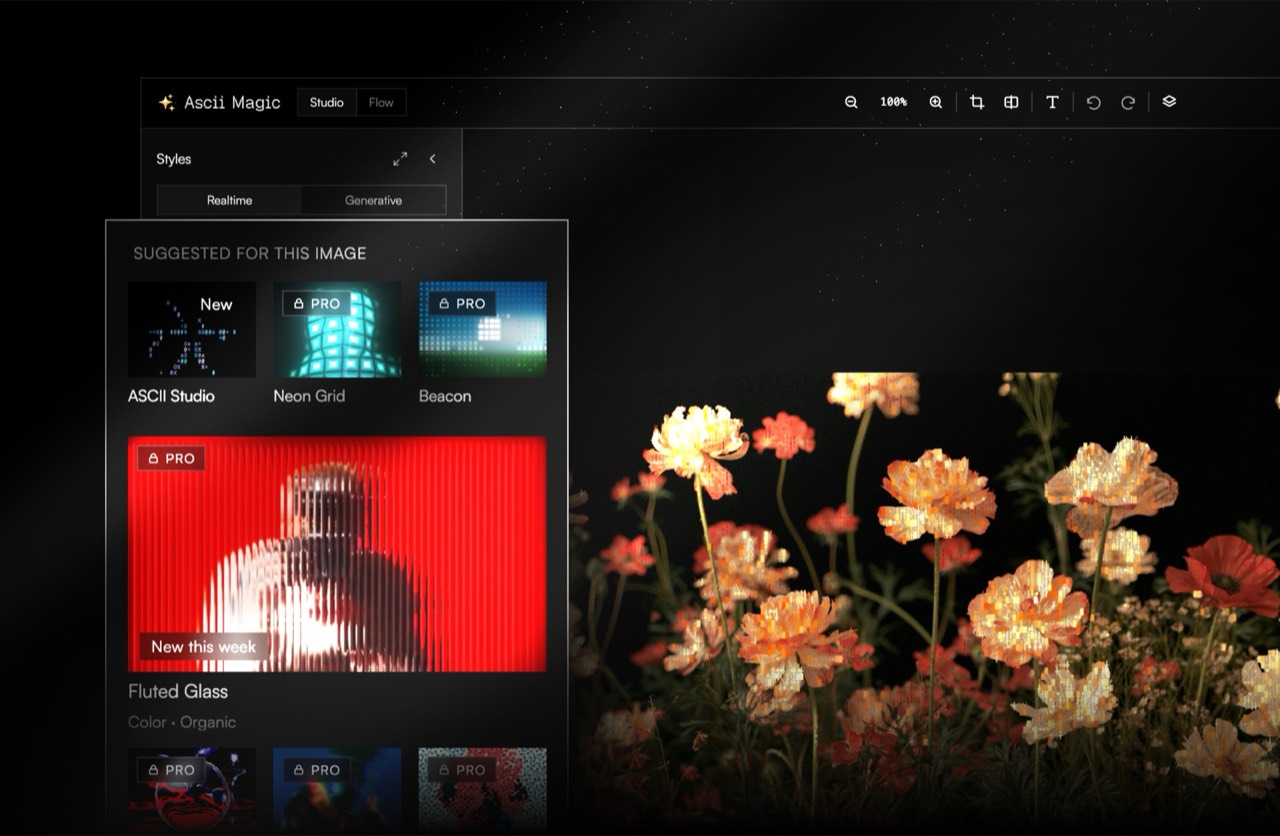 1234
1234- 1Top bar. Workspace switch on the left, canvas tools and zoom in the middle, account and Pro on the right.
- 2Realtime and Generative. Two catalogs behind one rail. Realtime renders in the tab, Generative calls a model and costs credits.
- 3Suggested for this image. Ranked against the picture you actually loaded, not a fixed editor's pick.
- 4Canvas. The render. Repaints as you drag any control, with no apply step.
The parameter panel
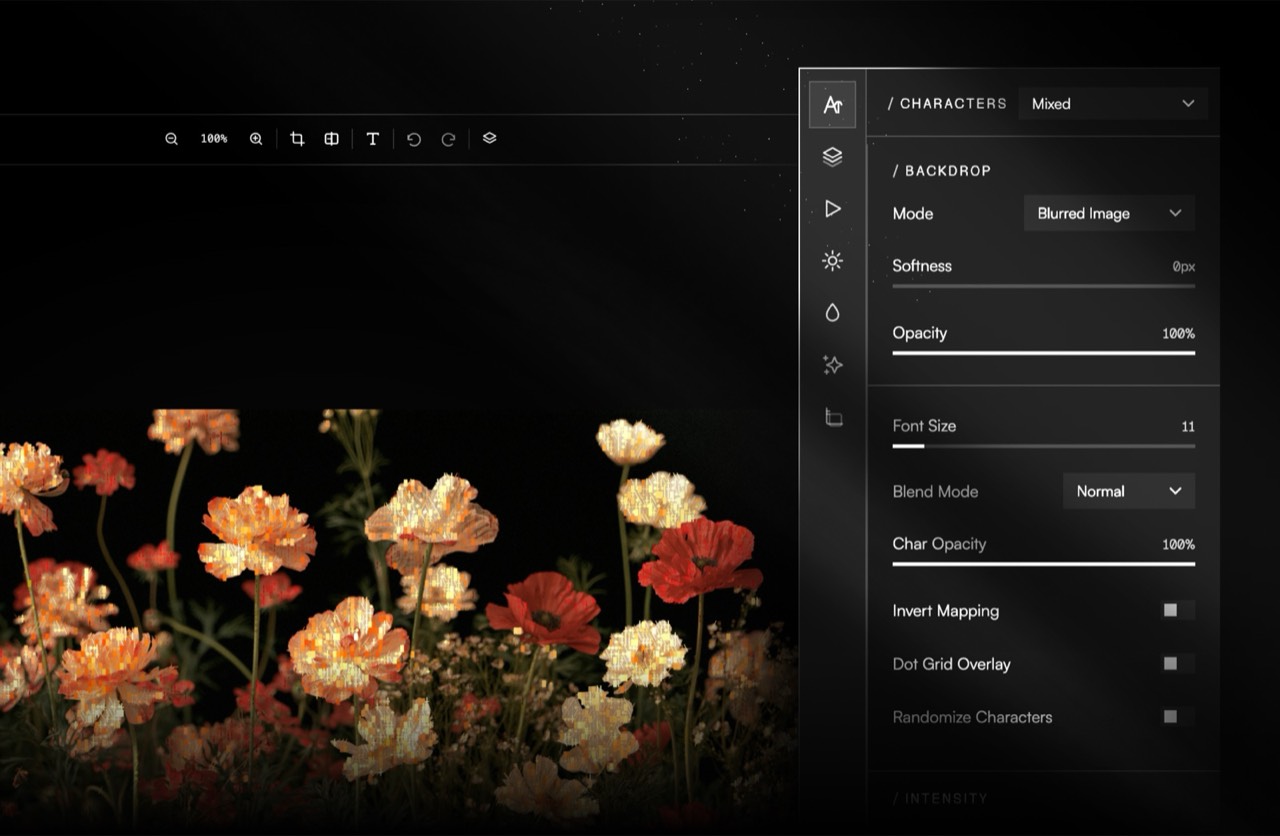 12
12- 1Section rail. Jumps between the groups of the current mode's panel.
- 2Controls. Only what this mode reads. A parameter it ignores is removed, not greyed.
Flow
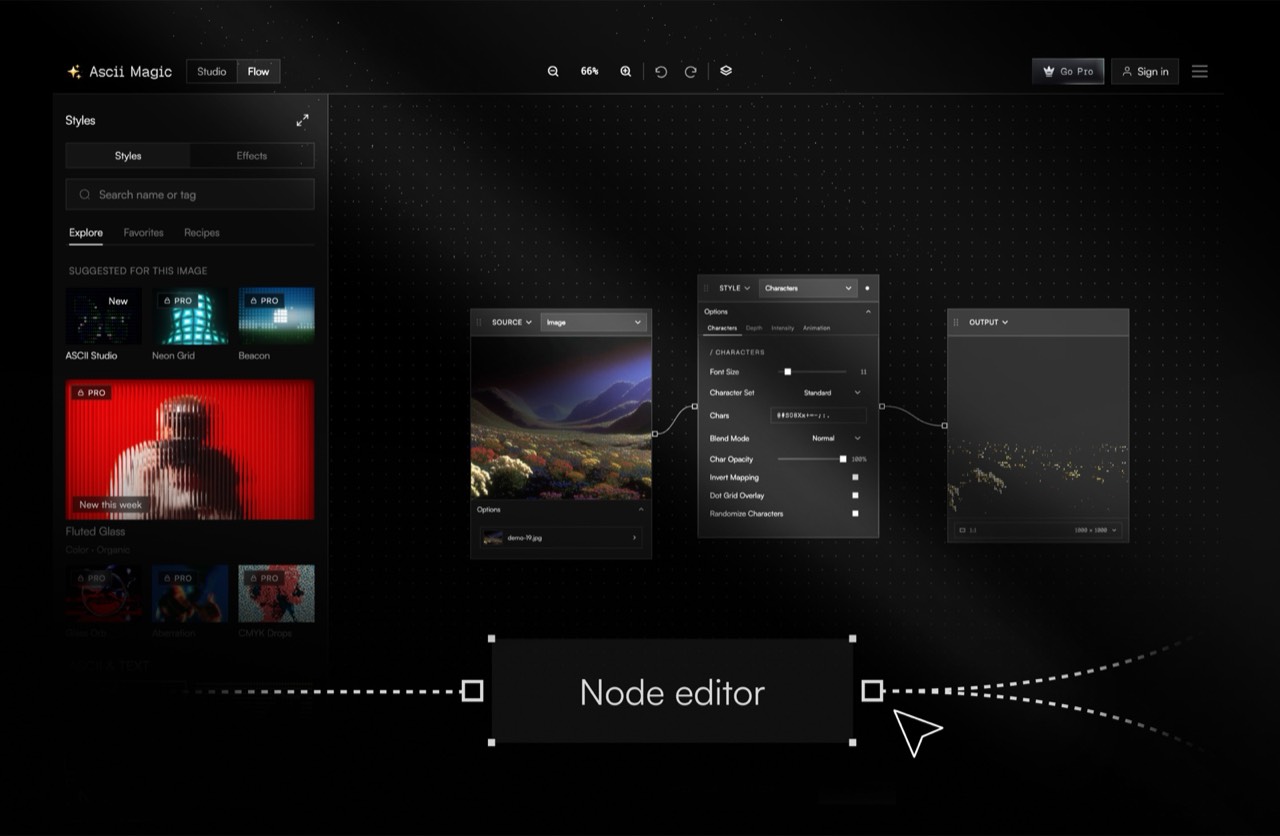
The second workspace, switched from the top bar. Same engine, same catalog, but the parameter panel is replaced by a node graph: the source, the style and the output are nodes, and you wire them together rather than filling in a form.
Zoom is a view, not a setting
0.25x to 4x in 0.25 steps. It CSS-scales the canvas and changes nothing about the render or the export, and loading a new source resets it to 1. Clicking the percentage readout resets it too.
This matters because it is the most common source of confusion about export size: what you export is a multiple of your source dimensions, never of what you are looking at. See Export.
Keyboard
| Keys | Does |
|---|---|
| Cmd or Ctrl and V | Paste an image from the clipboard, anywhere on the page. |
| Cmd or Ctrl and Z | Undo. |
| Cmd or Ctrl and Shift and Z | Redo. |
Undo covers parameter and style changes. It does not restore a previous source, because each new file revokes the last one's object URL on purpose, so those bytes are gone.
Why the panel changes
Each mode gets its own panel rather than one panel with disabled controls. A control that does nothing for the current mode is removed, not greyed out.
The reasoning is that a greyed control still teaches you it exists and invites you to hunt for the state that enables it. Removing it means the panel is always an honest list of what this mode actually reads. The cost is that the panel's height changes as you browse styles, which is the trade being made deliberately.
The collapsed rail
Collapsing the style rail is not dismissing it. Below 200px it snaps to a 72px mini-rail that still shows every style as a live 46px thumbnail of your own image. Double-clicking the drag handle toggles it.
Last updated