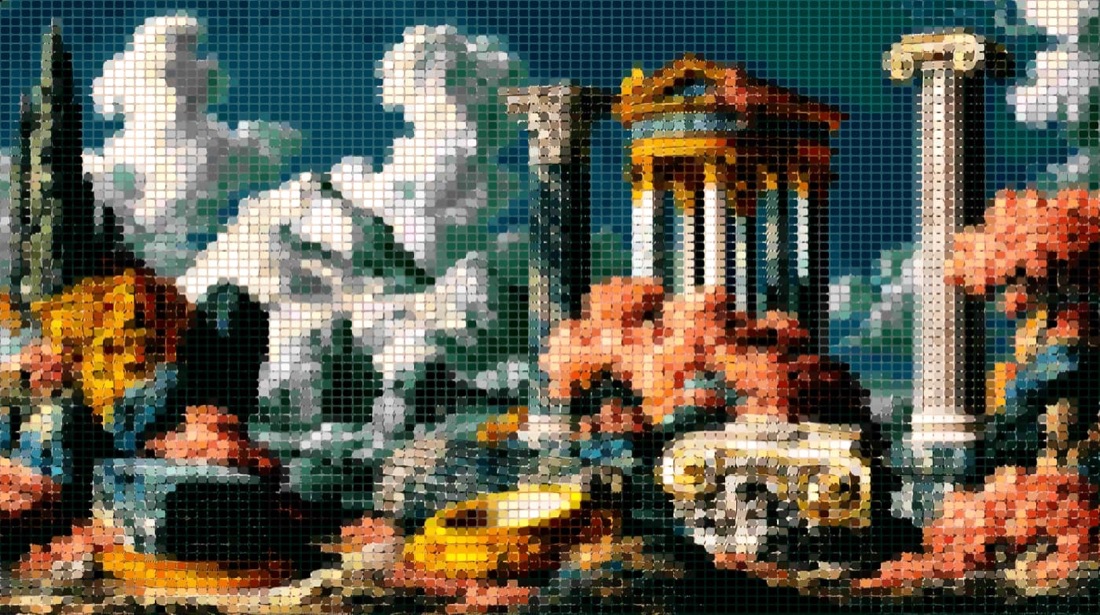
/TUTORIAL · PHOTO → LEGO MOSAIC
How to Make a LEGO Mosaic from a Photo
By Kailash · Updated June 28, 2026 · 6 min read
The short answer
Open a free browser-based LEGO mosaic generator, drop in your photo, switch the render mode to LEGO. The image becomes a grid of posterised studded bricks with raised-dot highlights, the LEGO mosaic look in one click. Adjust brick size and palette, then export PNG at up to 4×. This is not the official LEGO Group Mosaic Maker, it is a free online generator for previewing personal builds and stylizing photos.
Searches for "lego mosaic" and "lego mosaic maker" pull up two very different intents. The first is people looking for the official LEGO Group Mosaic Maker, a paid retail service that turns a photo into a real LEGO kit you receive in the mail. The second is people who want the visual look of a LEGO mosaic without buying anything. This guide is for the second case: a free, fast, browser-based way to see what a photo would look like as a LEGO mosaic, for personal builds, posters, social posts, or just for fun.
Is this the official LEGO Group Mosaic Maker?
No. The official LEGO Group Mosaic Maker is a paid in-store service offered by the LEGO Group in some flagship stores; you take a photo and they produce a real LEGO mosaic kit you can take home and build. It is great if you want the physical artefact, but it is not free and not available everywhere.
ASCII Magic is the free, online, browser-only alternative for the visual look. It is not affiliated with the LEGO Group. You use it to preview how a photo would translate to LEGO bricks, for personal projects, posters, or as a planning starting point before committing to a real build.
How to make a LEGO mosaic from a photo in 6 steps
Open the editor and drop your photo
Drop your JPG or PNG onto the ASCII Magic editor. The image is decoded locally; nothing is uploaded.
Switch the render mode to LEGO
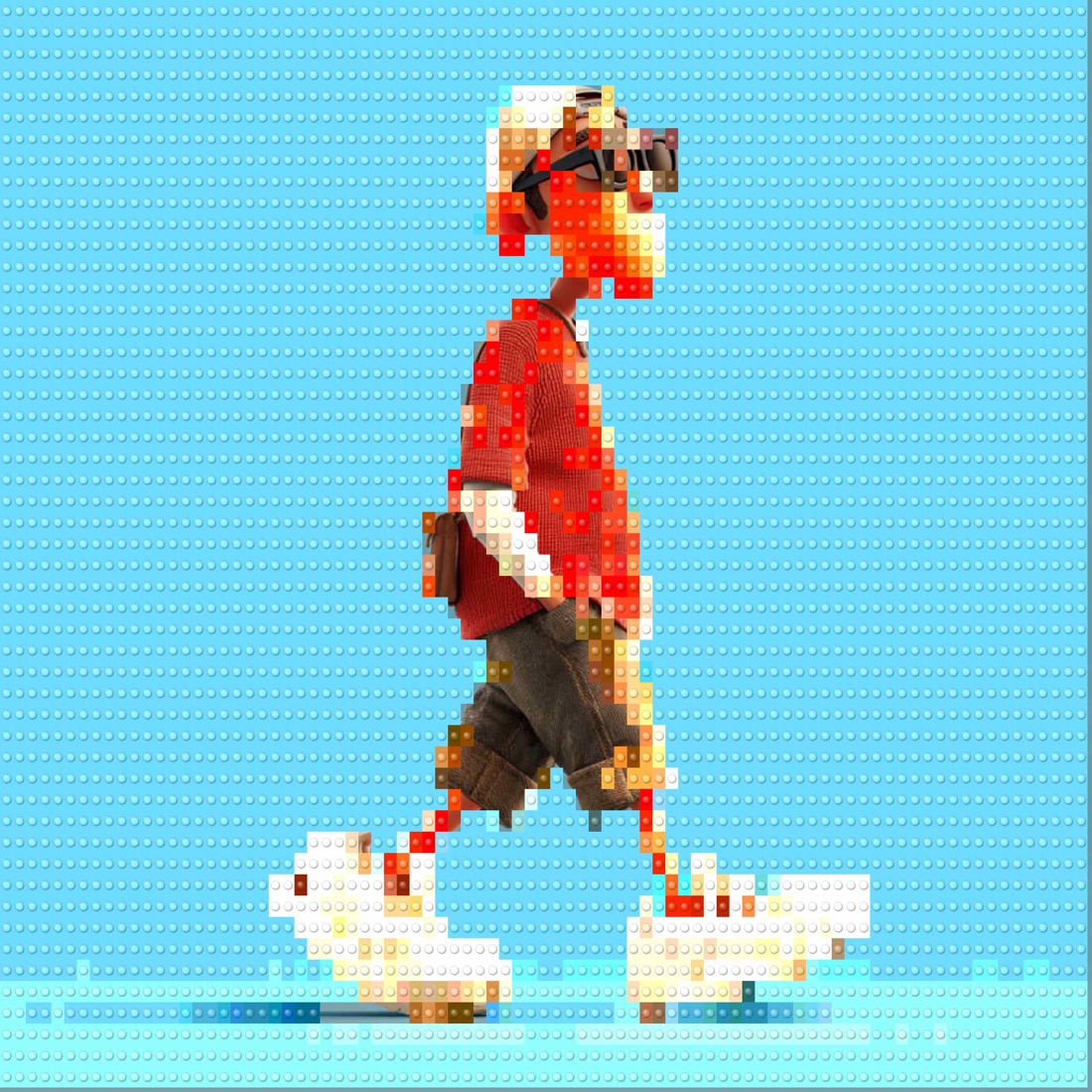
Pick LEGO from the styles rail. The photo is immediately rendered as studded bricks with raised-dot highlights, the unmistakable LEGO-mosaic look.
Pick a brick size
Smaller bricks preserve detail and read closer to a photograph. Larger bricks give a chunky, graphic LEGO feel. For portraits, lean smaller; for logos and bold shapes, lean larger. Match the brick size to whatever you are going to do with the output (poster, social post, build plan).
Apply a palette
Pick a palette that maps to real LEGO brick colours. This posterises the photo to a buildable set, so the mosaic actually looks like LEGO rather than a generic pixel grid. The included palettes cover classic LEGO colour ranges.
Tune contrast and stud highlight
Push contrast so faces and details still read at brick resolution. Adjust the raised-dot highlight intensity, brighter dots look more graphic, dimmer dots look closer to a flat mosaic.
Export PNG at up to 4×
Export the LEGO mosaic at up to 4× resolution for sharp printing or sharing. No watermark, no signup.
Use cases
- Preview a real LEGO mosaic build. Before buying bulk bricks, see what your subject will look like at the resolution you can afford.
- LEGO-style posters. Export at 4× and print. A LEGO mosaic portrait of a child, partner or pet is a strong personal gift.
- Social posts. LEGO-style versions of a brand asset, a fan-art piece, or an event photo.
- Compare to the official Mosaic Maker. If you are debating whether to pay for the official kit, get a free visual first.
LEGO mosaic vs. pixel art vs. voxel
Three close cousins. Pixel art is a flat grid of squares, no studs. Voxel art is isometric 3D cubes with face shading. LEGO mosaic is a flat grid like pixel art, but each square is a studded brick with raised-dot highlights, so it reads as LEGO. Same engine, three completely different aesthetics, depending on which one you pick.
Tips for a strong LEGO mosaic
- Pick a subject with a clear silhouette. Mosaics simplify. A face, a logo or a hero pose translates well; a complex scene becomes mush.
- High-contrast lighting. Bright subject on a dark background gives the LEGO mosaic punch.
- Crop tight. Brick resolution is fixed, so every brick lands where you put it. Crop to the subject before you LEGO-ify.
- Export 4× for print. Posters need the resolution; screens are fine at 1×.
- Pair with a graphic palette for stronger reads. A photographic palette can feel muddy; a classic LEGO palette pops.
Same editor for 100+ styles
LEGO is one of 100+ styles in the same editor. Once you have used the controls, the same workflow turns the same photo into a tile mosaic, pixel art, voxel cubes, dither, halftone dots or ASCII characters. Browse all 100+ styles here.
Tips for a convincing LEGO look
A few adjustments separate a flat grid of squares from something that reads as real LEGO bricks:
- Brick size: larger bricks (fewer of them) give the chunky, buildable look people recognise as LEGO. Very small bricks start to look like ordinary pixel art, so err on the larger side unless your source is high resolution.
- Contrast: LEGO palettes are limited, so a punchy source reads better than a soft one. Raise contrast a little so each brick lands on a clearly different colour rather than a muddy in-between.
- Subject: bold, simple subjects, a face, a logo, a single object, translate far better than a cluttered scene, because each brick has to stand in for a whole area of the photo.
- Studs and shading: the built-in stud highlight and shadow are what sell the plastic-brick feel, so keep them on rather than flattening the tiles.
Start with medium-to-large bricks and a slightly raised contrast, then step the brick count down until your subject is still clearly recognisable, that balance is usually the most convincing LEGO result.