
/STYLE · HEX MOSAIC
Hex Mosaic rebuilds any image as a honeycomb, a tessellation of hexagonal tiles sampled straight from your photo. Each hexagon takes the average colour of the area it covers, so the picture reads as a clean geometric mosaic instead of square pixels. Tune the tile size, switch between pointy-top and flat-top, and set the grout thickness and colour, all previewing live in your browser.
Try this style →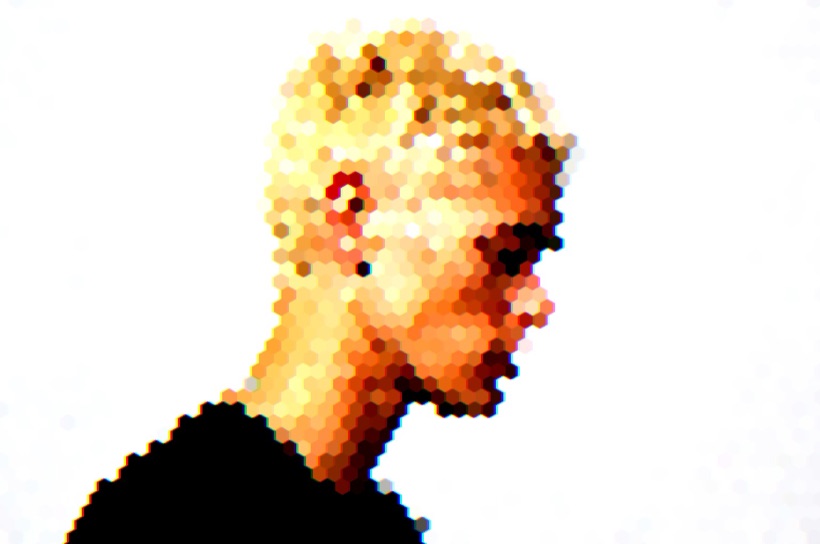
/PRO EFFECT
Hex Mosaic is one of the Pro effects, so there is no in-page editor for it here. Everything below describes exactly what it does and what it is good for, and you can see it running on your own images inside the studio with Pro.
What it does
The free styles on this site all have a working editor on their own page. This one is part of Pro, along with 4K export, video and the AI generative presets.
/WHAT IT IS
Where pixel art and a square mosaic snap your image to a grid of squares, Hex Mosaic snaps it to interlocking hexagons. Each tile samples the pixels underneath it and fills with their average colour, so the whole photo turns into a honeycomb where the tiles meet on six sides with no long straight seams. The result is a softer, more geometric read that keeps the shape of your subject while flattening it into clean tiled colour.
Because it is a tessellation, the pattern stays even across the whole frame at any tile size, from a fine honeycomb that still shows faces and text, to big bold cells that read as pure abstract geometry. Hex Mosaic is a Pro style in ASCII Magic. See plans.
/HOW IT WORKS
Drag any JPG, PNG or WebP into the editor. Nothing uploads, your file stays in the browser.
Choose the Hex Mosaic style, then set Size, pick pointy-top or flat-top, and dial in the grout thickness and colour.
Save your honeycomb as a PNG or JPG at up to 4x source resolution, with no watermark.
/CONTROLS
Sets the hex radius. Smaller tiles pack more hexagons into the frame for finer detail, larger tiles give a bold, chunky honeycomb that reads as abstract geometry.
Flips the grid between pointy-top and flat-top hexagons. Pointy-top reads taller and more crystalline, flat-top reads wider and more architectural.
The border thickness drawn between tiles, like the grout in a real mosaic. Keep it thin for a near-seamless honeycomb, or thicken it for a bold, tiled look.
The colour of those borders. A dark grout gives stained-glass leading, a light grout looks like ceramic tile, and matching it to the background hides the seams entirely.
/TIPS
/USE CASES
Turn a photo or gradient into a honeycomb pattern for phone and desktop wallpapers with a clean, modern geometry.
The hex grid is a staple of sports broadcast and gaming design. Drop in a player, character or logo for stream overlays, thumbnails and team graphics.
Large tiles and low detail turn any image into a colourful abstract background for slides, posters and social posts.
Add a dark grout and the mosaic reads like stained glass, a look that holds up well in art prints and large-format posters.
/EXPORT
Export your hex mosaic as a PNG or JPG at up to 4x the source resolution, with no watermark. PNG keeps the crisp tile edges and any hard grout lines, JPG gives you a smaller file for the web.
Every render happens locally in your browser on HTML5 Canvas, so your source image stays on your device and is never uploaded to a server. That makes Hex Mosaic safe for client work, unreleased artwork and anything you would rather not send to the cloud.
/FAQS
/CREATE ART IN SECONDS
Adjustable tile size, pointy-top or flat-top orientation, and grout you can make thin or bold. Every change previews instantly, then export at up to 4x resolution.
Try this style →/RELATED STYLES
Each opens the editor with that style ready. Explore the full styles index.